Working with remotes
1 / 8Working with remotes
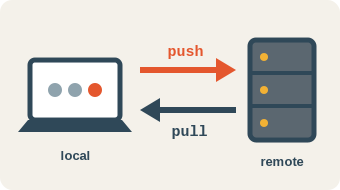
A remote is a copy of your repository on another computer. You push your commits to it and pull other people's commits from it.
In this topic
What is a remote?
The same repository, kept somewhere else: a backup and a meeting point for a team.
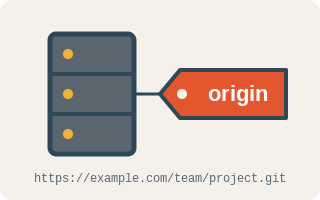
The usual nickname for your main remote. It is only a short name for a long URL.
git remote -v lists each remote with its URL.
git remote add origin <url> connects a local repository to a remote one.
Clone
A photocopy of the whole repository, history included, onto your computer.
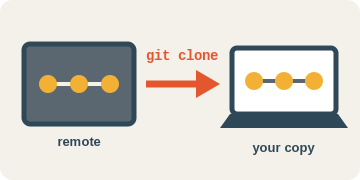
git clone <url> creates a folder with all files and all commits.
The place you cloned from is saved as origin, ready for pull and push.
Clone once per project. After that you only fetch, pull and push.
Fetch
Check the mailbox. New commits arrive, but nothing on your desk changes.
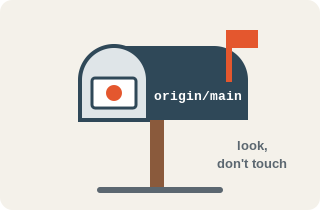
git fetch downloads new commits from the remote. It is always safe to run.
A remote-tracking branch: your local note of where main was on the remote at the last fetch.
git log main..origin/main shows the commits you have not merged yet.
Pull
Fetch plus merge in one step. Your branch catches up with the remote.
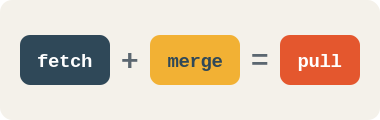
git pull fetches new commits and merges them into your current branch.
A pull contains a merge, so it can stop with a merge conflict. Resolve it as in any merge.
Pull with a clean working directory, so your unfinished changes do not get in the way.
Push
Upload your commits so others can get them, and so they are backed up.
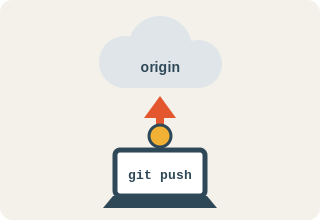
git push sends the commits of your current branch to the remote.
git push -u origin main also links your branch to the remote one. After that, plain git push and git pull are enough.
The remote has commits you do not have. Run git pull, then push again.
Changes you have not committed stay on your computer.
The daily rhythm
Start by catching up, finish by sharing: pull, edit, commit, push.
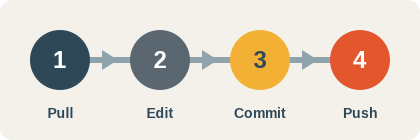
git pull to get the latest work.
Make your changes.
git add, then git commit.
git push to share it.